
Съдържание
What is Cloudflare?
Cloudflare is a leading web security and productivity company that provides a global content distribution service – CDN (Content Delivery Network).
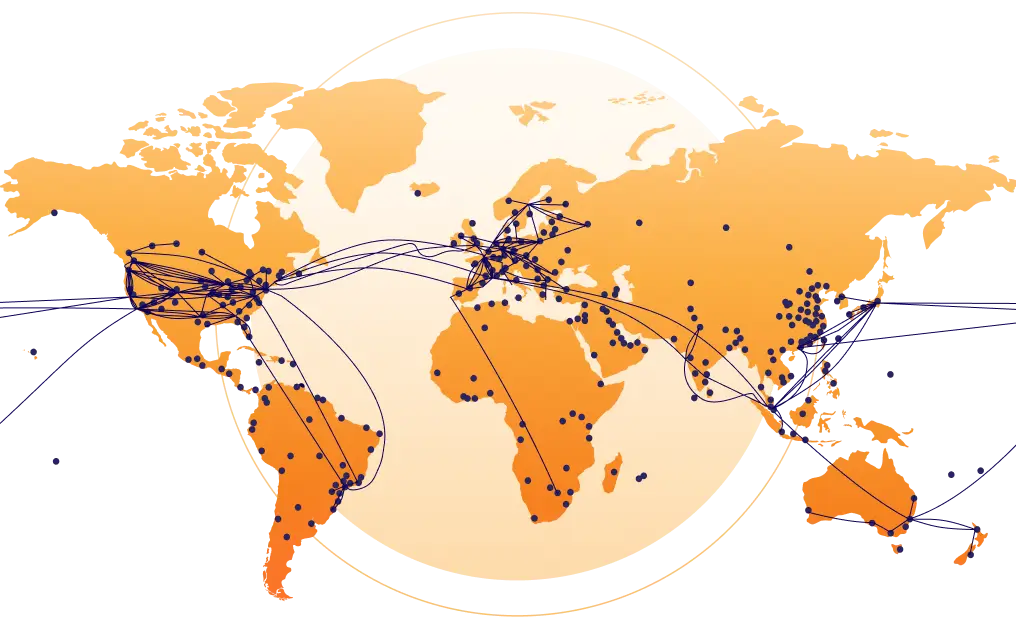
Cloudflare’s CDN network consists of over 330 servers located in different countries around the globe. When a visitor tries to load your site, static content (images, CSS, JavaScript) is delivered from the server closest to them instead of the original hosting. The result is significantly faster loading, regardless of the user’s geographic location.
How does it work in practice?
When Cloudflare is activated, your site starts loading over the CDN infrastructure. Each request first passes through Cloudflare, where it takes place:
- Caching of static content – images, CSS, JavaScript and other files are stored on edge servers
- Traffic filtering – malicious requests are blocked before they reach your server
- Optimization – gzip compression, code minification and other speedup techniques
Why use Cloudflare?
Performance
The cached content is served from the closest location to the visitor, which reduces latency and speeds up site loading.
Cloudflare offers different levels of caching that need to be configured to the specifics of your website:
- Standard level – caches static elements such as CSS, images and JavaScript. Suitable for most sites.
- Aggressive level – caches all static elements, including those with query strings. Use with caution on dynamic sites.
- Development Mode – temporarily disables caching for 3 hours, allowing immediate review of site changes.
Additionally, Cloudflare provides optimization tools such as Auto Minify (auto minify CSS, JavaScript and HTML), Rocket Loader (asynchronous JavaScript loading) and Early Hints (pre-loading resources). Important: Test carefully before enabling these features – conflicts may occur with some CMS systems and themes (especially WordPress with multiple plugins). It is recommended to activate the options one by one and check if the site works correctly.
Cloudflare for Bulgarian websites
The good news is that Cloudflare has its own data center in Sofia since 2015. Before its opening, Bulgarian networks were serviced from Frankfurt – over 1000 km away.
Keep in mind that routing to the Sofia server depends on several factors: your Internet Service Provider (ISP), the type of plan (Free, Pro, Business) and the current network configuration. For Free plans, it is possible that some traffic is routed through other European hubs (Frankfurt, Prague, Budapest) depending on your ISP’s peering arrangements with Cloudflare.
Cloudflare uses an anycast network, which means that each visitor connects to the most optimal Cloudflare POP (Point of Presence), determined by the Internet routing at the time (BGP/peering), ISP arrangements, and physical network topology. This is not fixed to a “plan” (Free/Pro/Business), but is determined by the network itself and how it is implemented at the specific point.
That is:
- When Cloudflare has a Sofia POP (Point of Presence), traffic for Bulgarian users will usually be served locally (Sofia) as close as possible;
- But sometimes some of the traffic may go through another location (e.g. Frankfurt, Prague, etc.) if the specific ISP does not have good local peer-ing with Cloudflare in Sofia or if the network paths/preferences are different. This is not a direct “limitation of the Free plan” but rather a detail of BGP routing and global anycast architecture.
In practice, this means that Free/Pro/Business plans don’t geo-restrict which POPs you can use – Cloudflare automatically directs traffic to the nearest/optimal POP, regardless of plan.
Why use Cloudflare even if your website is hosted in Bulgaria?
Even if your hosting is in Sofia and your target audience is Bulgarian, Cloudflare provides significant advantages:
- DDoS protection – Enterprise-level protection from distributed attacks that otherwise costs thousands of dollars
- WAF (Web Application Firewall) – protection against SQL injections, XSS attacks and other vulnerabilities
- Free SSL certificate – HTTPS for the site at no additional cost
- Reduce load – static content is served by Cloudflare, saving hosting server resources
- Always Online – in case of a hosting problem, Cloudflare displays a cached version of the site
- Bot Management – protection from aggressive indexing and scraping
For sites with an international audience, the benefits are even greater – a visitor from the US, Asia or Western Europe will receive the content from the nearest Cloudflare server instead of waiting for a response from Bulgarian hosting.
Security
Cloudflare uses a multi-layered security approach based on a combination of behavioral analysis, machine learning and pre-defined security rules. Protection against DDoS attacks spans both the network layer (Layer 3 and Layer 4) and the application layer (Layer 7 – HTTP/HTTPS), with the system automatically detecting traffic anomalies – sudden spikes, unusual request patterns or suspicious User-Agents – and responding in real-time.
In terms of web attacks, Cloudflare implements a Web Application Firewall (WAF) that protects sites from common vulnerabilities such as SQL injections, XSS attacks, file inclusion attempts (LFI/RFI), and other threats described in the OWASP Top 10. In addition, the platform actively filters SPAM requests, brute force attempts, and aggressive indexing by bots that can overload the server or retrieve content without permission.
One of the key benefits of Cloudflare is the global nature of the protection. When an IP address is identified as malicious in an attack against any site on the network, that information can be used to automatically block or restrict that same source across the entire CDN infrastructure. In this way, protection is not isolated to an individual site, but is collectively enhanced for all Cloudflare customers.
Thanks to this large-scale approach and the huge volume of traffic processed, Cloudflare blocks tens of billions of malicious requests every day. According to official data, the company stops more than 70 billion threats per day, including some of the largest and most sophisticated DDoS attacks recorded in Internet history – attacks that would take down traditional hosting or even entire networks if not neutralized on a global level.
Reliability
The “Always Online” feature allows you to display a cached version of the site even in case of a problem with the hosting server.
Free SSL
Cloudflare provides a Universal SSL certificate at no additional cost. This means that your website can work with the HTTPS protocol without the need to purchase and install your own SSL certificate.
Universal SSL covers:
- The main domain (example.com)
- Top-level subdomains (www.example.com, shop.example.com)
Cloudflare offers several SSL encryption modes:
| Mode | Visitor-Cloudflare encryption | Cloudflare-server encryption | Recommended for |
| Off | ❌ None | ❌ None | Never use |
| Flexible | ✅ HTTPS | ❌ HTTP | Only if the server does not support SSL |
| Full | ✅ HTTPS | ✅ HTTPS (no validation) | Server with self-signed certificate |
| Full (Strict) | ✅ HTTPS | ✅ HTTPS (with validation) | Recommended – server with valid certificate |
Important: Flexible mode only encrypts the connection between the visitor and Cloudflare, not between Cloudflare and your server. This means data travels unencrypted part of the way and is not suitable for sites with sensitive information (online stores, contact forms with personal data).
Most modern hosting providers offer free Let’s Encrypt certificates, so use Full (Strict) whenever possible.
The free plan: what’s included and why is it so generous?
Cloudflare uses a freemium business model, with the free plan offering surprisingly rich functionality:
Included in the Free Plan:
| Function | Description |
| Unlimited CDN traffic | No bandwidth limit |
| DDoS protection | Enterprise-level protection from distributed attacks |
| Universal SSL | Free SSL certificate for the domain |
| Global DNS | One of the fastest DNS resolvers in the world |
| Basic caching | Static files are cached in 330+ locations |
| 3 Page Rules | Rules for personalising behaviour |
| Basic analytics | Overview of traffic, threats and performance |
| IPv6 compatibility | Accessing the site from IPv6 networks |
Additional options:
- Cloudflare optimizer – automatically merges CSS and JavaScript files into a single query and performs minification, which can reduce up to 20% of the code
- Development mode – temporarily disables caching so you can see changes on the site immediately
- Email Routing – free redirection of emails from your domain to an existing inbox
- AI Crawl Control – control AI bots’ access to your content
- 1.1.1.1 DNS – a free public DNS resolver with a focus on privacy
Why does Cloudflare offer so much for free?
Cloudflare is a company with a clear mission: ‘To help build a better Internet’. This mission is not just a marketing slogan – it defines the company’s business decisions.
The more sites use the network, the better threat data Cloudflare collects and the more effective the protection becomes for everyone. When your business grows and you need advanced features, you’ll naturally choose a paid plan with a provider you already know.
Cloudflare Beyond CDN: It’s important to know that the CDN service is just one part of the Cloudflare ecosystem. The company offers many additional paid products:
- Cloudflare Zero Trust – enterprise security without VPN
- Cloudflare Workers – serverless platform for code execution on edge servers
- Cloudflare R2 – object storage without egress fees (direct competitor to Amazon S3)
- Cloudflare Pages – free hosting for static websites and JAMstack applications
- Cloudflare Stream – video streaming platform
- Workers AI – implementing AI models on the edge network
- Cloudflare Images – image optimization and delivery
These products target larger companies and developers, generating revenue that allows the free plan to remain generous.
Social responsibility: Cloudflare actively supports internet freedom through initiatives such as:
- Project Galileo – Free protection for organisations working in the field of human rights, arts and democracy
- Project Athenian – free protection of official election sites
- Project Cybersafe Schools – Free Zero Trust protection for schools in the US
Navigating the Cloudflare Control Panel
Cloudflare’s control panel offers multiple settings. Here is a detailed overview of the main sections, grouped by purpose:
Security and protection
These settings control the site’s protection from malicious traffic and unauthorized access.
Security
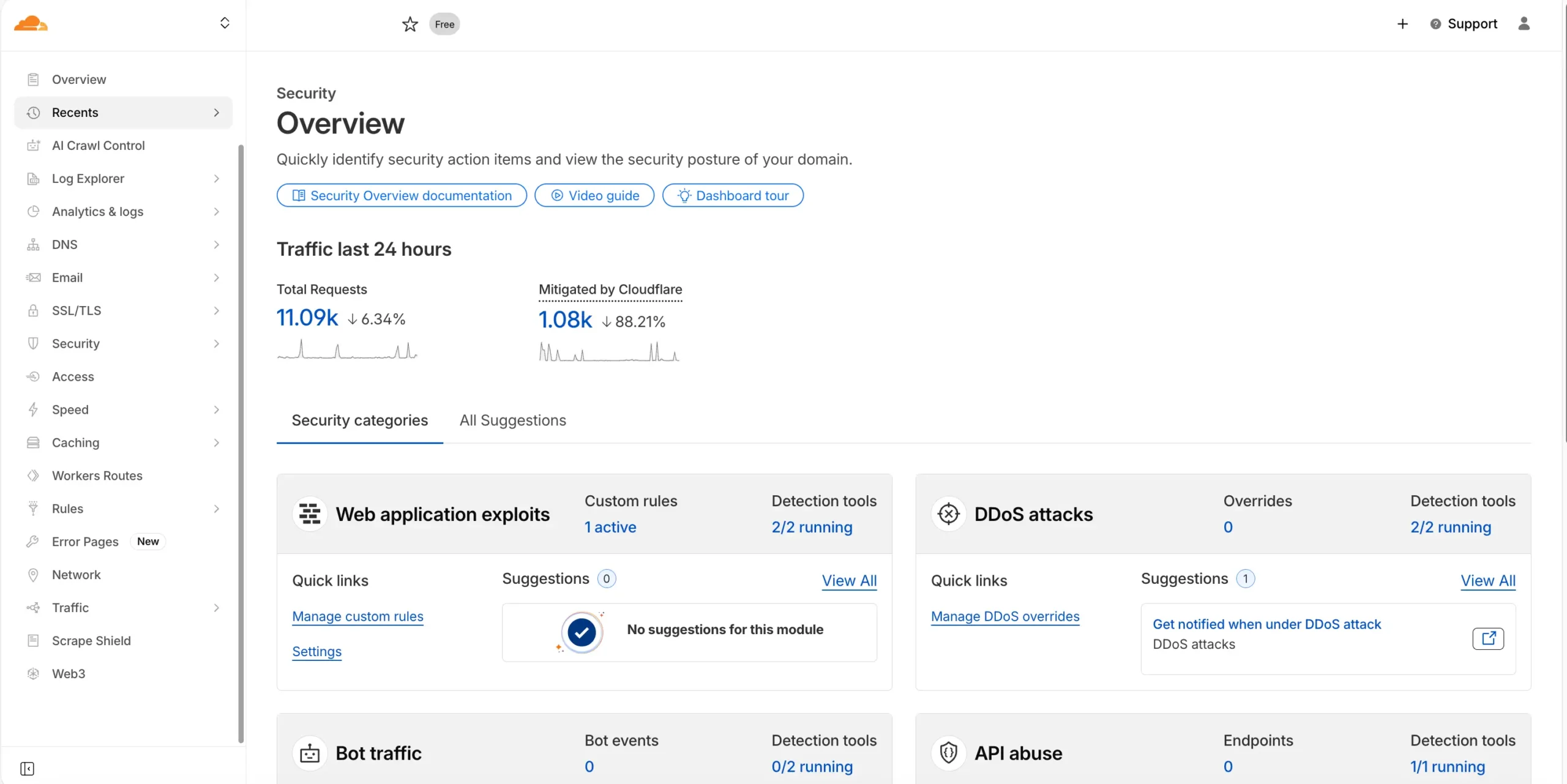
The central hub for all security-related settings on your site.
Main functions:
- Security Level – determines how aggressively Cloudflare will challenge visitors with CAPTCHA or JavaScript checks. Options.
- Bot Fight Mode – automatically detects and blocks known malicious bots
- Challenge Passage – how long to remember that a visitor has passed a check (from 5 minutes to 1 year)
- Browser Integrity Check – checks HTTP headers for signs of malware
WAF (Web Application Firewall):
- Protection against SQL injection, XSS attacks, file inclusion and other OWASP Top 10 vulnerabilities
- In the free plan you get basic manageable rules
- Ability to create custom rules (limited number in Free plan)
DDoS protection:
- Automatic protection against L3/L4 attacks (network level)
- HTTP DDoS protection with adaptive algorithms
- “I’m Under Attack!” mode – shows a JavaScript challenge to each visitor for 5 seconds
For most sites, the Medium setting is optimal. If you notice increased malicious activity in Analytics, increase to High. Use “I’m Under Attack!” only when under real attack, as it slows down access for legitimate users.
SSL/TLS
Manage the encrypted connection between visitors, Cloudflare and your server.
Sections:
- Overview – current encryption mode and quick access to settings
- Edge Certificates – managing the SSL certificates that Cloudflare presents to visitors. Universal SSL is activated automatically.
- Origin Server – settings for the connection between Cloudflare and your hosting server
- Custom Hostnames – for SaaS applications that serve multiple domains
Origin Server settings:
- Origin Certificates – free 15-year certificates from Cloudflare, valid only for the connection between Cloudflare and your server (not publicly trusted)
- Authenticated Origin Pulls – additional authentication via client certificate
Additional options:
- Always Use HTTPS – redirects all HTTP requests to HTTPS
- Automatic HTTPS Rewrites – automatically changes HTTP links in the page to HTTPS
- Minimum TLS Version – minimum TLS protocol version (recommended: TLS 1.2)
If you have a Let’s Encrypt or other valid certificate on the server, use Full (Strict) . If you don’t have a certificate and can’t install, Flexible is a temporary solution, but plan on migrating to Full (Strict).
Access
Control access to certain parts of your site through additional authentication.
Applications:
- Protection of administrative panels (wp-admin, /admin)
- Restricting access to staging environments
- Create secure internal tools
Authentication methods:
- Email OTP (one-time code by email)
- Integration with identity providers (Google, GitHub, Azure AD, Okta)
- Service tokens for API access
Even with the free plan, you can add an extra layer of protection to wp-admin by requiring an email OTP before accessing the login page.
Scrape Shield
Content protection from automatic extraction.
Functions:
- Email Address Obfuscation – hides email addresses from bots via JavaScript coding, while they remain clickable for real users
- Server-side Excludes – hides sensitive content from suspicious IP addresses
- Hotlink Protection – prevents your images from being directly embedded on other sites (saves bandwidth)
Email Obfuscation is safe to enable for any site. Hotlink Protection can cause problems if you want your images to show up on social networks or RSS readers.
AI Crawl Control
New feature to control AI bots.
What it does:
- Blocks or allows AI companies (OpenAI, Anthropic, Google, etc.) to index your content for model training
- Different from standard search engines – here you control whether AI models can learn from your content
If you create original content and don’t want it to be used to train AI models without compensation, enable blocking. Note that this does not affect classic SEO indexing by Google/Bing.
Technical settings
DNS configuration, query processing rules and network settings.
DNS
The heart of the Cloudflare integration – this is where all DNS records for the domain are managed.
Record types:
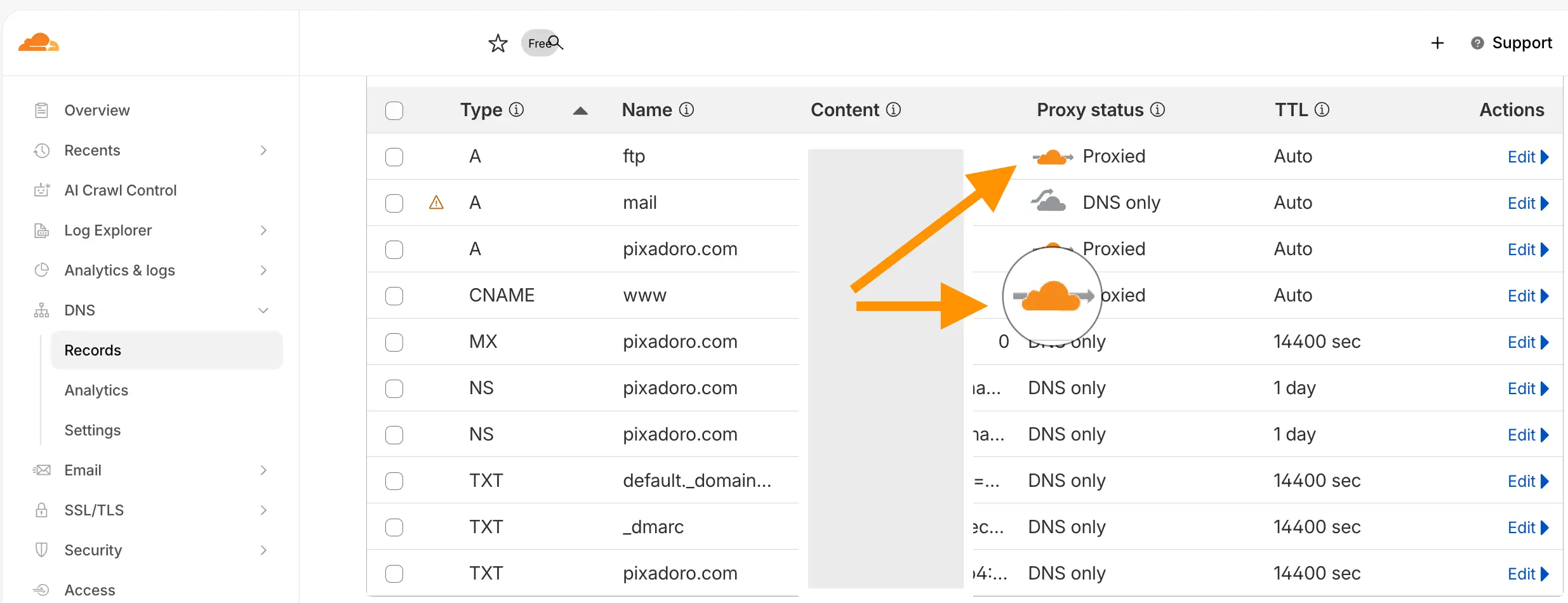
- A – directs a domain to an IPv4 address
- AAAA – directs a domain to an IPv6 address
- CNAME – alias to another domain
- MX – email server settings
- TXT – text records (SPF, DKIM, verifications)
- NS – nameserver of record
Proxy status (the cloud):
- Orange Cloud (Proxied) – traffic goes through Cloudflare, you get all the benefits (CDN, protection, SSL)
- Gray Cloud (DNS only) – Cloudflare only serves as DNS, traffic goes directly to the server. Use for: MX records, FTP subdomains, records that do not need to be proxied
TTL settings:
- In Proxied recordings TTL is automatic (usually 300 seconds)
- For DNS only records you can set a custom TTL
- Tip: Before migration or changes, reduce TTL to 60-120 seconds several hours in advance
DNSSEC:
- Additional layer of security to prevent DNS spoofing
- Requires activation in both Cloudflare and the domain registrar
After the initial setup, check all entries carefully. Cloudflare automatically imports existing records, but sometimes misses some. Make sure the MX records have a gray cloud.
Rules
Create custom rules for processing requests.
Page Rules (3 free): the classic way to create rules based on URL pattern.
- 301/302 redirects
- Forcing HTTPS
- Change the cache level for certain pages
- Cloudflare bypass for certain URLs
Examples:
*example.com/wp-admin/* → Security Level: High, Cache Level: Bypass
*example.com/*.jpg → Cache Level: Cache Everything, Edge TTL: 1 month
Transform Rules:
- Modification of URLs and HTTP headers
- URL Rewrites and Redirects
- Header modification (add/remove headers)
Cache Rules:
- Detailed caching control based on different conditions
- More flexible than Page Rules for cache settings
WAF Custom Rules:
- Create firewall rules with custom logic
- Blocking by IP, Country, ASN, User-Agent, etc.
With the limited 3 Page Rules in the free plan, use them strategically. Typical configuration: one rule for wp-admin (bypass cache + high security), one for static files (aggressive cache), one for specific needs.
Network
Low-level network settings.
Key Options:
- HTTP/3 (QUIC) – faster protocol, especially for unstable connections. Recommended: included
- WebSockets – support for WebSocket connections (required for real-time applications)
- Onion Routing – accessing the site through the Tor network
- IP Geolocation – adds a header with the visitor’s country (useful for geo-targeting)
- IPv6 Compatibility – automatic IPv6 for sites on IPv4 servers
- gRPC – gRPC protocol support
- Pseudo IPv4 – a solution for applications that do not support IPv6
For most sites, the default settings are optimal. Enable HTTP/3 for improved performance. WebSockets should be enabled if you use live chat, real-time notifications or similar features.
Workers Routes
Serverless JavaScript on Cloudflare’s edge network.
What is Workers:
Cloudflare Workers is a serverless platform that allows JavaScript and TypeScript code to run directly on Cloudflare’s edge servers located in over 330 locations worldwide. Instead of requests traveling to a central server, logic is executed as close to the end user as possible, resulting in extremely low latency – under 50 milliseconds for about 95% of Internet users. The platform eliminates the need to manage servers by providing automatic scaling according to workload and enables global application development and deployment without the traditional infrastructure complexity.
- Run JavaScript/TypeScript code on each of the 330+ Cloudflare servers
- Latency below 50ms for 95% of internet users
- No server management, automatic scaling
Applications:
- A/B testing
- Customize content by location
- API gateway and rate limiting
- Modification of responses/requests
Workers Routes allows you to route specific URL patterns to Worker scripts.
Workers is a powerful tool for developers. The free plan includes 100,000 requests per day. If you are not familiar with serverless, you can skip this section.
Web3
Settings for decentralized technologies.
Functions:
- IPFS Gateway – hosting content from InterPlanetary File System
- Ethereum Gateway – interacting with the Ethereum blockchain
Unless you are working with Web3 technologies, this section is not relevant for most traditional websites.
Analyses and logs
Traffic, performance and security monitoring.
Analytics & Logs
Visualization of your website traffic and performance data.
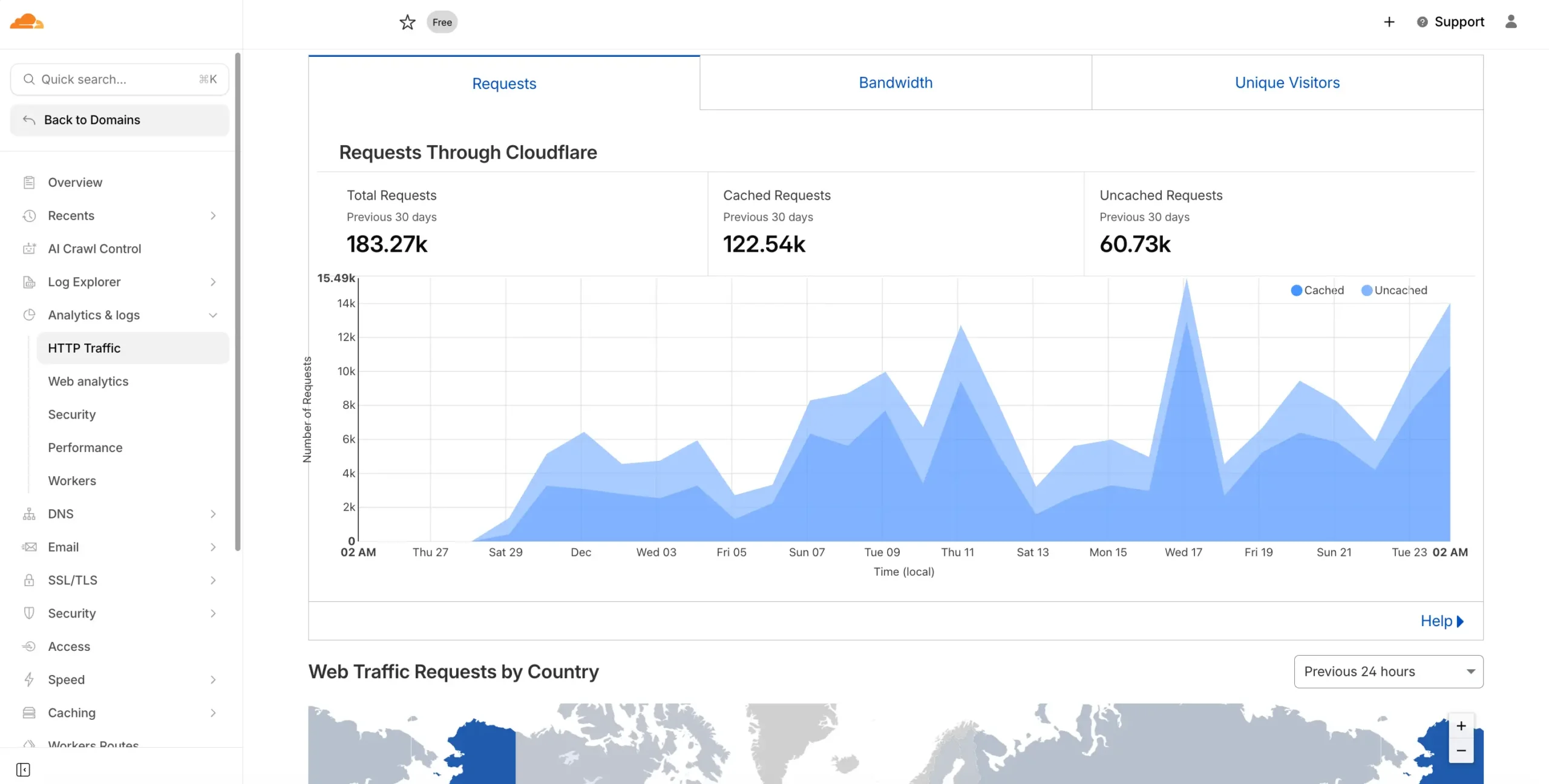
Traffic Analytics:
- Requests – number of requests (total, cached, uncached)
- Bandwidth – bandwidth used
- Unique Visitors ( IP-based)
- Page Views
Geographical distribution:
- Traffic distribution map by country
- Useful for understanding your audience and optimising targeting
Security Analytics:
- Blocked threats by type
- Top blocked IPs and countries
- WAF events and firewall activity
Performance data:
- Core Web Vitals (LCP, FID, CLS) — included in paid plans
- Cache performance – percentage of cached traffic
Time filters:
- Free plan: last 24 hours
- Pro/Business: up to 30 days of historical data
Check Analytics at least once a week. A sudden spike in blocked threats may indicate an attack attempt. A low cache hit ratio (below 50%) means you need to optimize cache settings.
Log Explorer
Detailed overview of individual HTTP requests.
Information about each request:
- Timestamp, IP address, User-Agent
- Request/Response headers
- Status code, cache status
- Response time
Limitations:
- Free plan: limited access
- For full functionality: enterprise plan with Logpush
Log Explorer is useful for debugging specific issues, but for daily monitoring Analytics is sufficient.
Email (Email Routing)
Free email forwarding for your domain.
What it does:
- Accepts emails to @your-domain.com
- Redirects them to an existing inbox (Gmail, Outlook, etc.)
- Does not require its own mail server
Examples:
- [email protected] -> вашият-личен@gmail.com
- [email protected] -> [email protected]
Settings:
- Catch-all address – receives all emails to non-existent addresses
- Email Workers – programmatic processing of incoming emails
Email Routing is an excellent solution for small businesses that want professional email addresses without paying for a separate email service. Note that this is for inbound mail only – for sending with your domain you need an SMTP service.
Speed and optimization
Settings to improve performance.
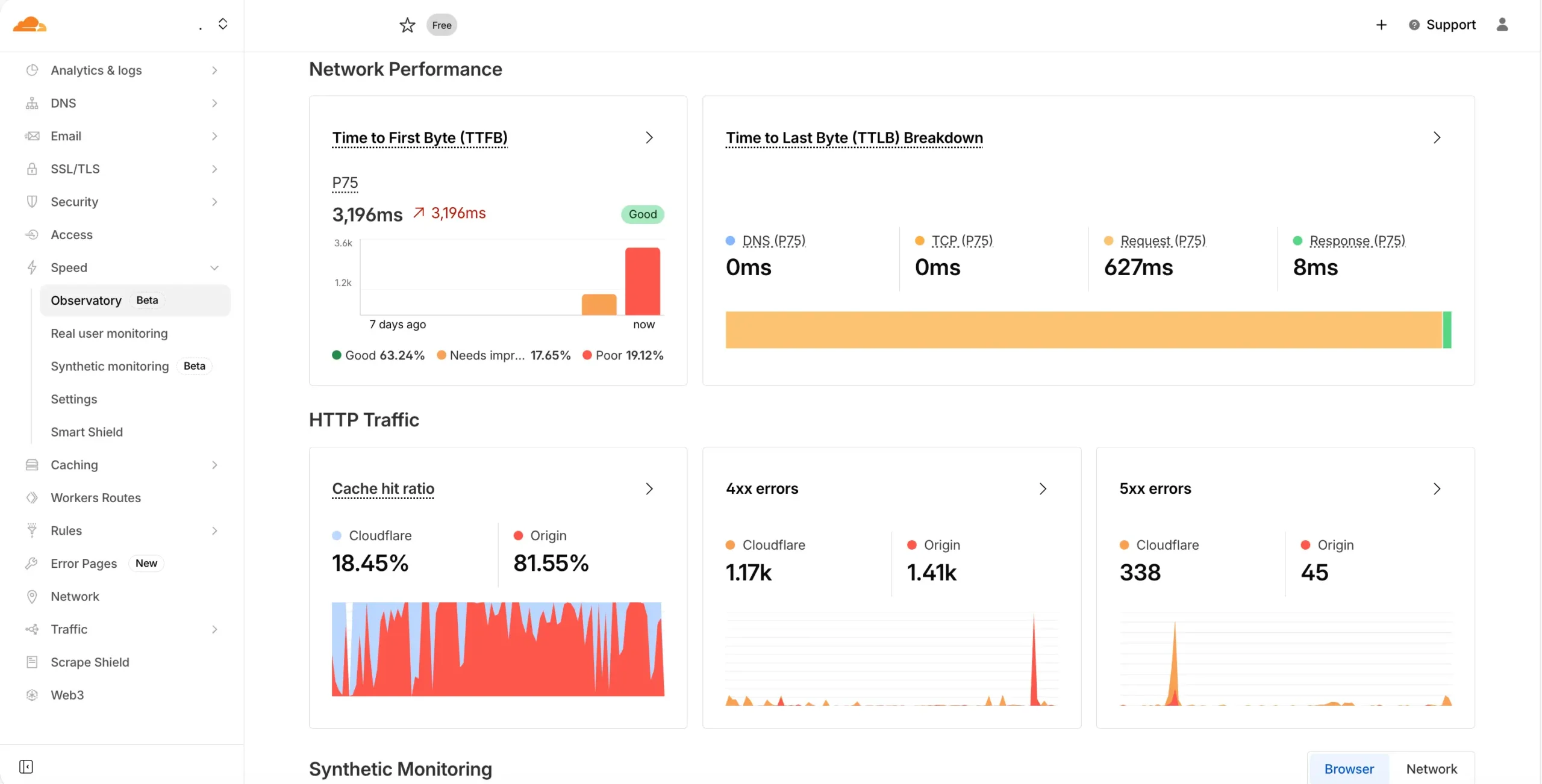
Speed
Loading speed optimization tools.
Optimization section:
Auto Minify:
- Removes unnecessary characters (whitespace, comments) from CSS, JavaScript and HTML
- Reduces file size by 10-30%
- Warning: may cause problems with some sites. Activate individually and test.
Rocket Loader:
- Asynchronous JavaScript loading
- Improves the perceived loading speed
- Warning: may break inline scripts and some plugins. Test carefully before production use.
Early Hints:
- Sends preload hints while the server is generating the page
- Browser starts loading critical resources earlier
- Safe to activate
HTTP/2 Server Push ( deprecated):
- Replaced by Early Hints
- Not recommended for new sites
Image Optimization (paid plans):
- Polish – automatic image optimization (lossy/lossless)
- Mirage – lazy loading and mobile optimization
- Image Resizing – dynamic image resizing
Speed Test:
- Measuring Core Web Vitals
- Comparison with/without Cloudflare optimization
Start with Early Hints (safe). Only enable Auto Minify for CSS first, then JavaScript, then HTML – testing after each step. Leave Rocket Loader for last and only if you have speed issues.
See also: how to improve TTFB and server response time
See also: webp images in WordPress (35% smaller size)
Caching
Control over content caching.
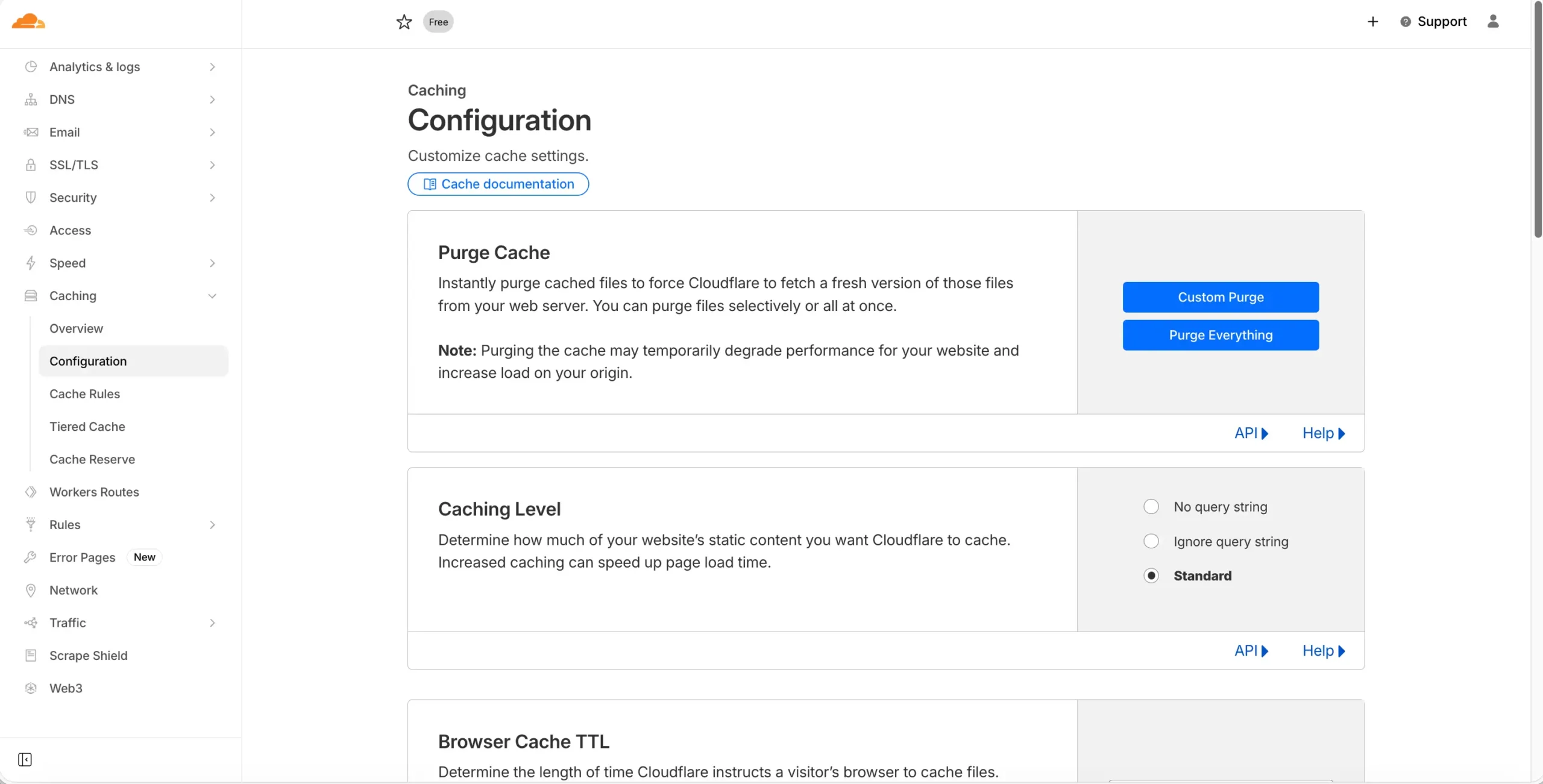
Cache Level Options:
- No Query String – caches only URLs without parameters
- Ignore Query String – caches ignoring parameters
- Standard ( recommended) – different cache for each unique query string
Browser Cache TTL:
- How long the visitor’s browser should keep the files
- Recommended: 4 hours to 1 day for most sites
- For static resources with versioning: 1 year
Edge Cache TTL:
- How long does Cloudflare keep the files
- Default: respects Cache-Control headers from the server
Always Online:
- When the server is unavailable, displays a cached version
- Highly recommended for production sites
Development Mode:
- Suspends caching for 3 hours
- Use when working on the site to see changes immediately
Purge Cache:
- Purge Everything – clears the entire cache (use after major changes)
- Purge by URL – purges specific URLs
- Purge by Tag/Prefix/Host – more precise purge (Enterprise)
After theme updates or significant changes, use “Purge Everything”. For daily content changes, manual purging is usually not necessary – Cloudflare respects cache headers.
Error Pages
Customize error pages.
Types of errors:
- 5xx errors – server problem (500, 502, 503, 504)
- 1xxx errors – Cloudflare-specific errors (1000-1099)
Custom Error Pages (Business Plan):
- Branded error pages with your design
- Better user experience for problems
Always Online Integration:
- On error first tries to show cached version
- If there is no cached version, shows error page
In the free plan you can’t customize error pages, but Always Online greatly improves the situation for temporary problems.
Traffic
Traffic management settings.
Load Balancing (paid):
- Traffic distribution between multiple servers
- Health checks for automatic failover
- Geographical balancing
Argo Smart Routing (paid):
- Intelligent routing over the fastest paths on the internet
- Average 30% improvement in latency
- Traffic-based charging
Rate Limiting:
- Limit requests from a single IP
- Protection against brute force attacks
- Free plan: limited options
Waiting Room (Business+):
- Virtual queue in high traffic
- Prevents server overload
For small and medium sites, the default settings are sufficient. Argo Smart Routing is a good investment for sites with an international audience where every millisecond counts.
Cloudflare Free vs. Paid.
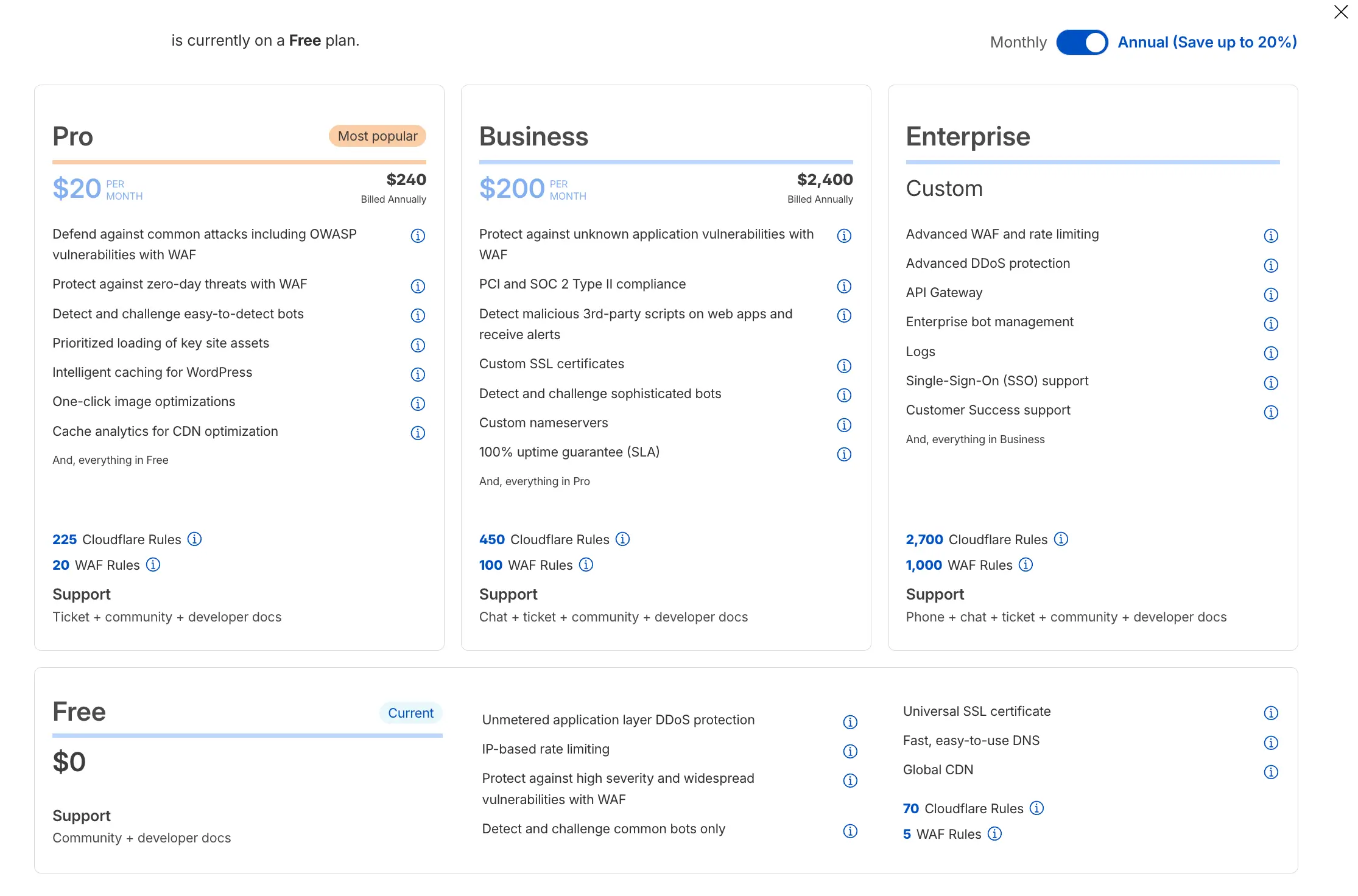
| Function | Free | For | Business |
| CDN and DDoS protection | ✅ Unlimited | ✅ Unlimited | ✅ Unlimited |
| SSL certificate | Universal | + Dedicated | + Custom certificates |
| WAF rules | Basic | Manageable rulesets | Advanced + custom rules |
| Page Rules | 3 | 20 | 50 |
| Image Optimization (Polish) | ❌ | ✅ | ✅ |
| Mobile optimization (Mirage) | ❌ | ✅ | ✅ |
| Cache Analytics | ❌ | ✅ | ✅ |
| Advanced analytics | 24 hours | 7 days | 30 days |
| Custom Error Pages | ❌ | ❌ | ✅ |
| Priority maintenance | ❌ (Community) | 24/7 chat + phone | |
| Uptime SLA | ❌ | ❌ | 100% guarantee |
| Argo Smart Routing | ❌ | Additionally | Additionally |
The current prices and features of the individual plans can be found here: https://www.cloudflare.com/plans/
When to switch to a paid plan?
Pro plan is suitable for:
- Online stores with many images that need Polish optimization
- Sites requiring finer control over WAF rules
- Projects where productivity directly affects revenue
- Need for a longer history of analytics
Business plan is required in case of:
- Business-critical applications requiring SLA assurance
- Need for 24/7 priority technical support
- PCI DSS compliance requirements for online payments
Important features and technical details
Before activating Cloudflare, keep in mind the following technical aspects:
Caching
What is cached by default: Cloudflare caches static files based on file extension: css, js, images (jpg, png, gif, webp, svg), fonts (woff, woff2, ttf), PDF documents and other static resources.
What is NOT cached:
- HTML pages (dynamic content)
- API Answers
- Pages with Set-Cookie headers
- Authenticated requests
The standard edge cache TTL is 4 hours, but Cloudflare respects the Cache-Control headers from your server. If the server sends Cache-Control: max-age=86400, Cloudflare will cache for 24 hours.
Cache Everything: You can force HTML caching via Page Rule, but beware – this may show outdated content or cache custom pages.
For WordPress sites, use a plugin like WPRocket, WP Super Cache or W3 Total Cache in combination with Cloudflare. Configure the plugin to send the correct Cache-Control headers.
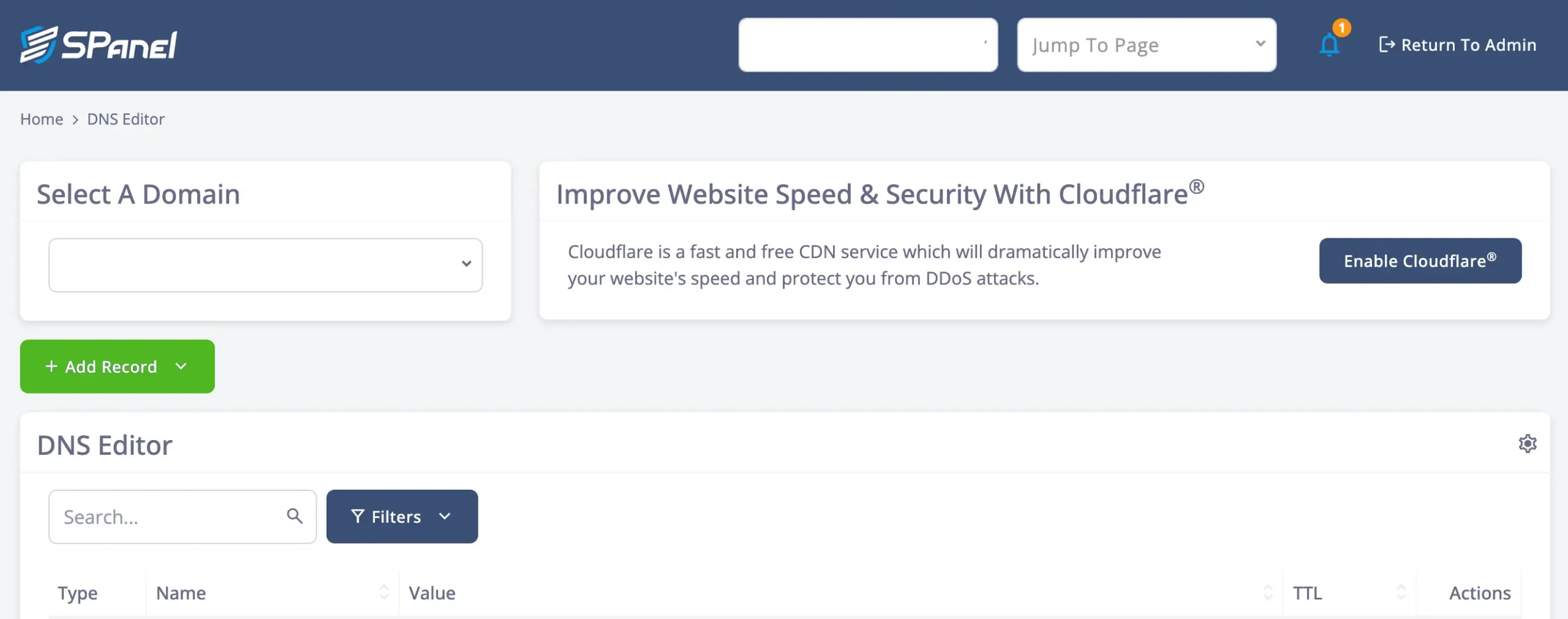
Some hosting companies like NS1.bg have integration with Cloudflare for easier DNS record management and cache clearing:
SSL features
Universal SSL coverage:
- Main domain: example.com
- First level subdomains: www.example.com, shop.example.com
- Second level subdomains: ❌ test.staging.example.com (requires Advanced Certificate)
Time to issue: a Universal SSL certificate is usually issued within 15 minutes to 24 hours after changing nameservers. If the certificate does not appear after 24 hours, check the DNS configuration.
Encryption modes – when which one to use:
- Flexible: only if the hosting does not support SSL at all (rare today). NOT suitable for sites with forms, login or payments.
- Full: If you have a self-signed certificate on the server
- Full (Strict): If you have a Let’s Encrypt or other CA-signed certificate. This is the recommended setting.
Flexible Mode Caution:In Flexible mode, the connection between Cloudflare and your server is unencrypted. This means that if someone has access to the network traffic between Cloudflare and your hosting (e.g. through a compromised ISP), they can intercept data. Visitors see a green padlock and HTTPS, but in reality the data is not protected all the way.
TTL and DNS settings
Standard TTL: Cloudflare uses a TTL of 300 seconds (5 minutes) for proxied recordings. This means that in case of a technical issue, switching between servers takes about 5 minutes.
Disabling Cloudflare: If you decide to disable Cloudflare (change the cloud from orange to gray or revert to the original nameservers), note that:
- The change is distributed according to the TTL of the records
- At TTL 300 seconds – about 5-10 minutes
- It is recommended to set a lower TTL (60-120 seconds) a few hours before a planned change
Changing the IP address
When Cloudflare is activated, your site starts loading from an IP address belonging to Cloudflare instead of the original IP of the hosting. This is a normal part of how the service works and provides:
- Hiding the real IP of the server (protection)
- Routing over the Cloudflare network
Consequences:
- Applications that rely on the visitor’s actual IP must read CF-Connecting-IP or X-Forwarded-For headers
- With WordPress, the Cloudflare plugin automatically corrects this. However, using this plugin requires an additional fee.
- Server IP-based firewall rules need to adapt
Potential problems and solutions
Mixed Content: if your site has HTTP resources (images, scripts) embedded in an HTTPS page, browsers will block them. Solutions:
- Enable “Automatic HTTPS Rewrites” in SSL/TLS settings
- Fix hardcoded HTTP URLs in database and theme
Redirect Loop: In Flexible SSL mode, if your server forces HTTPS, an infinite redirect occurs. Solution:
- Switch to Full or Full (Strict) mode
- Disable HTTPS redirect on the server
Problems with Auto Minify/Rocket Loader: some JavaScript libraries and WordPress plugins do not work correctly with these optimizations. Solutions:
- Disable problematic optimization
- Use Page Rule to bypass certain pages
- Add data-cfasync=”false” attribute to problematic scripts
WordPress specific:
- Install the official Cloudflare plugin to automatically clear cache when publishing
- Configure W3 Total Cache or WP Super Cache to work with Cloudflare
- Add Page Rule for wp-admin: Cache Level: Bypass, Security Level: High
More on this topic: Optimizing WordPress for Speed and Geo-Based IP Redirects with Cloudflare and WordPress: Redirecting to a Different Domain by Country Without Plugins.
Conclusion
Cloudflare is a tool that every website owner should seriously consider. The free plan provides enterprise-level DDoS protection, a global CDN, and an SSL certificate – functionality that was previously only available to large companies with big budgets.
What you get with the Free Plan:
- Protection against DDoS attacks and malicious traffic
- Accelerated loading via the global CDN network
- Free SSL certificate for HTTPS
- Reduced hosting server load
- Detailed traffic and threat analytics
- Always Online functionality for server problems
How to activate Cloudflare:
- Create an account on cloudflare.com
- Add your domain
- Cloudflare will automatically scan existing DNS records
- Replace the nameserver records for your domain with those provided by Cloudflare
- Wait for propagation (usually up to 24 hours, often less)
- Configure SSL mode (recommended: Full Strict)
- Activate Always Online (optional)
For most small and medium sites, the free plan is quite sufficient. As your business grows and specific needs arise (image optimization, advanced analytics, SLA guarantee), upgrading to a paid plan is easy and seamless.
Questions about setting up Cloudflare for your site? Contact us for consultation and assistance.

