

WooCommerce has released a built-in order cancellation feature, and it is now part of the core, not a plugin.
The feature is called ” Order Withdrawal ” and was released with WooCommerce 11.1. Until now, any store that wanted a withdrawal form had to rely on a third-party solution like the EU Order Withdrawal Button from vendidero or Germanized, while a request for a built-in feature remained open in the official WooCommerce repository. With version 11.1, the proposal has been implemented, and the form is included with the plugin update—no new installation or license required.
Directive 2011/83/EU grants consumers a 14-day right of withdrawal, and the new Article 11a, effective June 19, 2026, requires every online store selling to consumers in the EU to offer an electronic cancellation feature. The legal framework, deadlines, and penalties are described in detail in the article on the new contract withdrawal requirements, while here the focus is on exactly what WooCommerce has released, how to enable it, and where you’ll need to make some customizations.
By default, “Order Withdrawal” is disabled, and the documentation itself specifies that the feature can help ensure compliance but does not guarantee it.
How to Activate Order Withdrawal
Go to WooCommerce > Settings > Advanced > Features, and look for ” Order withdrawal ” in the main list. It’s not listed under experimental features, so no feature flag or definition in wp-config.php is required. Enable the option and save your changes. The description in the interface states that this activates a public feature for customer order cancellation requests.
After activation in WooCommerce ( >, Settings, >, Advanced, >, Page setup ), a new field called “Order withdrawal” appears in the “Account endpoints” group. The default value is “withdraw-order,” which makes the form accessible at /my-account/withdraw-order. If you prefer a Bulgarian slug, such as otkaz-ot-poruchka, enter it there, and the form will work at /my-account/otkaz-ot-poruchka without having to regenerate permalinks.
The /my-account/ part comes from the page set as the “My account” page, and if you’ve renamed it, the endpoint will follow the new address.
The field in Page Setup exists only as long as the feature is enabled. If you disable it, the field disappears along with the URL rules.
What the customer sees
The form requires a first and last name, an email address (entered twice for confirmation), and an order number. The customer chooses whether to cancel the entire order or only certain items; in the case of a partial cancellation, the “Additional details” field becomes required, and the customer must specify which items are being returned. There is no field for a reason, and there is no registration requirement, which complies with the prohibition on additional mandatory fields in Article 11a.
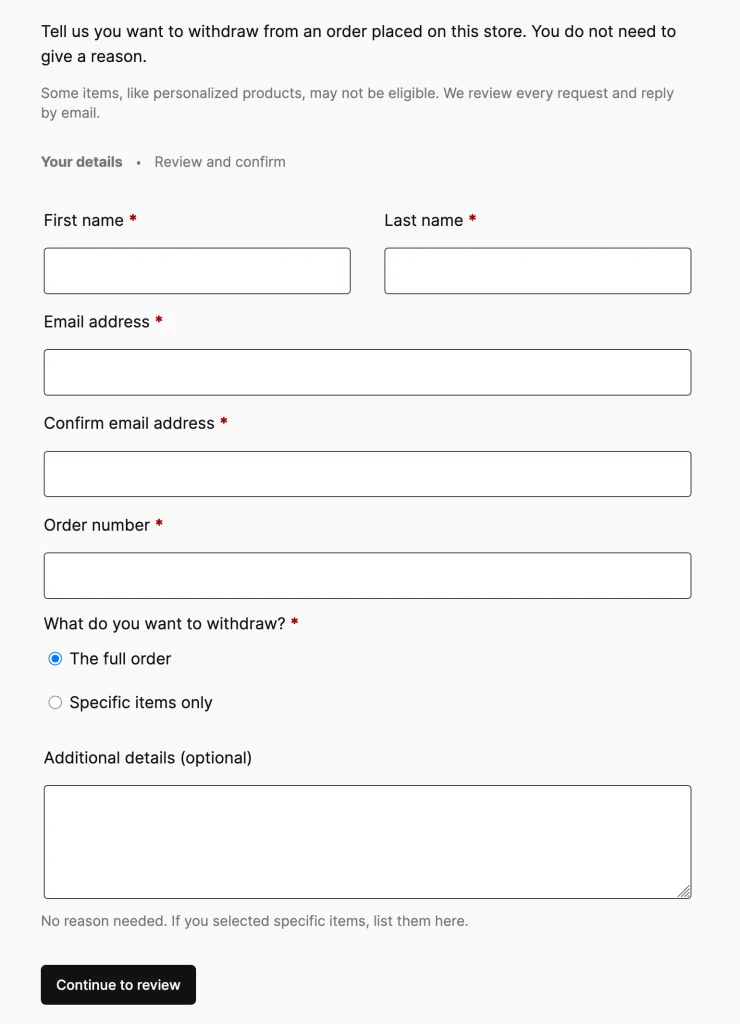
Before submitting, the customer sees a screen to review the information entered. The request is sent only after confirmation, so the two-step process required by the directive is in place. This is followed by a confirmation screen and an email containing a copy of the submitted data. Check whether this email includes the date and time of receipt, because Article 11a explicitly requires them to be provided on a durable medium, and it is not clear from the text of the documentation whether they are included.
If they are missing, adding them is a necessary correction, not just a cosmetic change.
What Does the Merchant Get?
Notifications about new orders are sent to the Administration Email Address specified in the “Settings” > ” > ” > “General” section in WordPress, not to the email address specified in the WooCommerce settings. The “Reply-to” address is the customer’s email address, so a reply sent directly from your email inbox will reach them.
These emails do not appear in WooCommerce > Settings > Emails. They have no recipient field, no toggle to enable them, and no template that you can edit from there. If the requests need to be sent to a separate email address, the only built-in way to do this is to change the administrator email address. The text comes from the WooCommerce language pack, so if the Bulgarian translation is incomplete, you can correct it via Loco Translate or a gettext filter.
An inbox notification also appears on the WooCommerce home screen. When the order number and billing email address match those of an actual order, the request is automatically linked to it, and an order note is added to the order. This note is your internal record with the date and time.
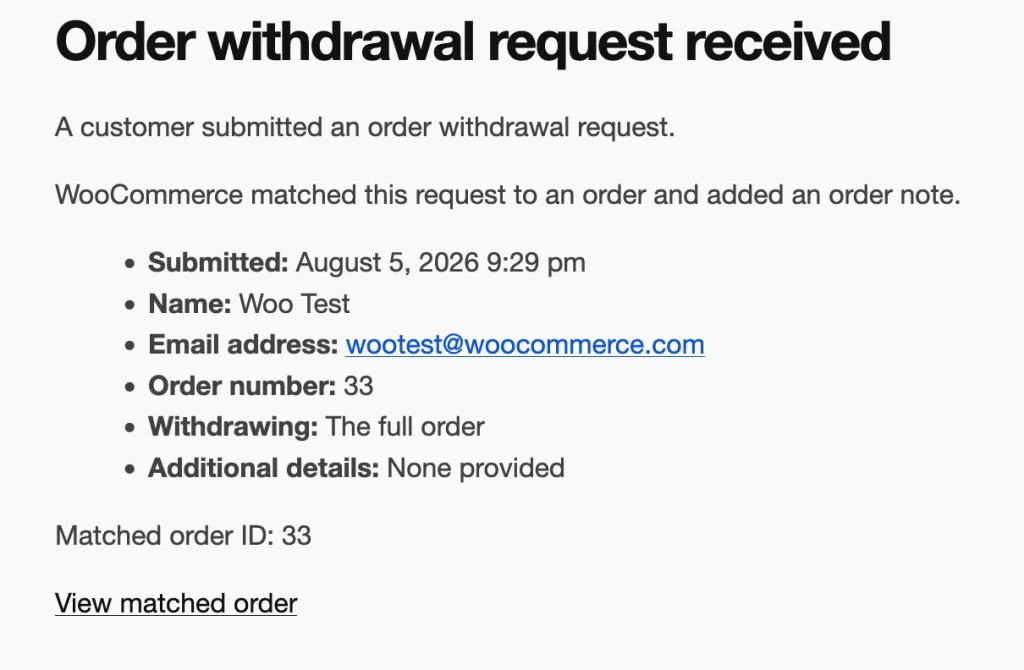
When there is no match
An error in the order number or an order placed with a different email address does not stop the request. It is accepted, the customer receives the same confirmation, and you receive an email stating that WooCommerce was unable to link it to an order. In this case, there is no order note and no inbox notification, so the email is the only trace. You’ll need to search for the order manually by name, email address, and the entered number.
The spam filter for incoming email here poses a real risk, because a single missed email means an unprocessed rejection, which, by law, can still be considered valid.
The 14 days are counted from the wrong date
WooCommerce calculates the 14-day window from the order date, not the delivery date. The right of withdrawal in the EU begins upon receipt of the goods, but the system cannot reliably determine when the goods were delivered, so it uses the order date as a substitute. This approach is safe: the warning can only appear after the actual deadline, never before it.
For orders older than 14 days, a line is added to the email and the inbox notification stating that the order is past the deadline. This is for informational purposes only, and the order is processed as usual.
The same applies to the order status. A request can be linked to an order in any status, including “canceled,” “refunded,” or “failed.” Before taking any action, check the current status, because the form does not validate it. A duplicate request for a single order is rejected right in the form, and the customer sees a message asking them to contact you, without you receiving a notification about the second attempt.
There is also a limit of one request every 30 seconds per email address and per IP address.
What the function does not do
Submitting a request does not change the order status, cancel the order, or generate a refund. The decision on how to proceed—whether to issue a refund, request a return, or seek clarification—is made entirely on a case-by-case basis.
The feature does not distinguish between items under Article 16 of the directive. An engraved mug and a standard T-shirt in the same order are treated the same, even though the former is excluded from the right of withdrawal. There is also no automatically generated link in the footer. WooCommerce creates an endpoint, but the visible link labeled “Withdraw from the Contract Here,” accessible from every page, must be added by you via the menu or using code. If your store was built before these requirements were introduced, now is the time to include this in your general review of the site’s terms and conditions.
add_filter( 'wp_nav_menu_items', function ( $items, $args ) {
    if ( 'footer' !== $args->theme_location ) {
        return $items;
    }
    $url = wc_get_endpoint_url( 'withdraw-order', '', wc_get_page_permalink( 'myaccount' ) );
    return $items . '<li class="menu-item"><a href="' . esc_url( $url ) . '">Отказ от договора тук</a></li>';
}, 10, 2 );
Replace “footer” with the actual `theme_location` of your theme, and replace “withdraw-order” with the slug you selected, if you changed it in Page Setup. The snippet goes in the child theme’s `functions.php` file or in a code snippets plugin—not directly in the theme.
Plugin or built-in feature
Now that the feature is built into the core, the question is whether to stick with the plugin you’re already using. The built-in version is no longer a dependency and receives updates along with WooCommerce. For now, plugins offer more control over the email template and text. If you already have a working plugin, keep only one of the two; otherwise, the customer will encounter two different forms for the same action.
For a new WooCommerce online store, the built-in Order Withdrawal feature is a sensible starting point, and you should only add a plugin when a specific feature is missing.
Stores on other platforms receive the form ready-to-use after migration, which is another reason to migrate your online store to WooCommerce. Pre-launch test: Place a guest order from an incognito window, submit a cancellation through the form, and check the customer’s email and the order note. Only then should you publish the link in the footer.
Update the terms and conditions as well, specifying the online option as a way to exercise the right of withdrawal, in addition to the traditional form. The other topics related to the store—from checkout to migrations—are grouped under the WooCommerce category.
Frequently Asked Questions
-
How do you enable “Order Withdrawal” in WooCommerce?
Under WooCommerce > Settings > Advanced > Features, there is an option called “Order withdrawal.” This feature is disabled by default and is not experimental.
-
Does the customer need to be logged in to submit a cancellation?
No. The /my-account/withdraw-order form is public and only requires a first name, email address, and order number, so it works for guest orders as well.
-
Is the order automatically canceled after a cancellation request is submitted?
No. The request adds an order note and sends an email, but the status, cancellation, and refund are still decided manually by the merchant.
-
Where can I edit the order cancellation email?
Nowhere in WooCommerce > Settings > Emails. The notification is sent to the administrator’s email address specified in Settings > General, and the text can only be changed via translation or a gettext filter.
-
What happens if the order number is incorrect?
The order is accepted again and the customer receives a confirmation, but the merchant receives only an email without an order note and must locate the order manually.

